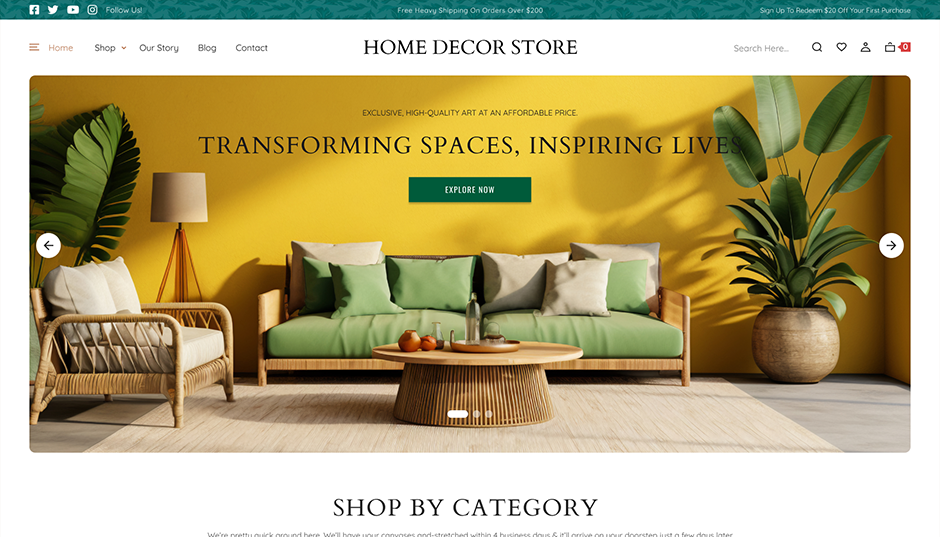
WordPress templates control how different parts of your website appear, from the homepage layout to blog posts, headers, and footers. While themes provide ready-made designs, you may eventually need to adjust certain sections to match your branding, improve navigation, or refine how content is displayed. Making these changes can help create a more polished and functional website that better supports your goals.
Understanding how to edit wordpress template allows you to customize layouts, add new design elements, and improve the structure of your pages without rebuilding your entire site. Whether you prefer visual editing tools, built-in customization options, or direct file editing, WordPress offers multiple ways to modify templates depending on your experience level and the type of changes you want to make.
Why You Might Need to Edit a WordPress Template
Editing Creative WordPress themes can help you achieve several important goals:
- Branding: Make your site visually consistent with your brand’s colors, typography, and design style.
- Customization: Modify layouts and page structures so your content is presented clearly and effectively.
- Functionality: Add or adjust features such as sliders, galleries, forms, or call-to-action sections.
- SEO Improvements: Optimize headings, schema structure, and layout hierarchy for better search visibility.
- User Experience: Refine navigation menus, headers, footers, and sidebars to make browsing smoother.
Template editing can also strengthen your site’s performance and engagement. For instance, adding a sticky header can keep navigation accessible, while inserting related posts in blog templates can encourage visitors to explore more pages. Even small layout adjustments often lead to noticeable improvements in retention, usability, and conversions.
Learning how to edit WordPress templates helps you maintain the right balance between design, functionality, and performance, ensuring your website stays polished, efficient, and aligned with your goals.
Methods to Edit WordPress Templates
Here’s a quick approach on how to edit wordpress template.
Method 1: Using Page Builders (Easiest – Beginner Friendly)
Page builder plugins provide one of the simplest ways to modify templates because they allow you to design pages visually instead of editing code. A popular example is Elementor, which offers a drag-and-drop interface where you can customize sections, columns, and content elements directly on the page.
With Elementor, you can edit templates such as headers, footers, single posts, and archive pages using the Theme Builder. Instead of modifying theme files manually, you simply open the template in the visual editor and adjust the layout, content, and styling using built-in widgets and design controls.
Step-by-Step Guide to Editing Templates with Elementor
Step 1: Install and Activate Elementor

Log in to your WordPress dashboard and navigate to Plugins → Add New. In the search bar located at the top right, type Elementor Website Builder. Once the plugin appears in the search results, click Install Now and wait for the installation to finish. After the plugin installs, click the Activate button. When Elementor is activated successfully, a new Elementor menu will appear in the left sidebar of your WordPress dashboard.
Step 2: Open the Theme Builder Section

From the dashboard sidebar, go to Elementor → Templates → Theme Builder. This section contains the main templates used across your website. You will see categories such as Header, Footer, Single Post, Archive, and Page Templates. These templates control how different parts of your website appear to visitors.
Step 3: Select the Template You Want to Edit

Inside the Theme Builder, choose the template you want to modify. For example, if you want to change the design of blog posts, open the Single Post template. If you want to update your website’s header layout, select the Header template. Click Edit with Elementor to launch the visual editor.
Step 4: Customize the Template Layout and Design

Once the Elementor editor opens, you will see your template preview in the center of the screen and a panel with editing tools on the left side. Click any element such as headings, images, buttons, or text blocks to edit its content. You can also drag new widgets like image blocks, icons, buttons, headings, or spacers from the left panel and drop them anywhere within the layout. Elementor also allows you to adjust design settings such as colors, fonts, spacing, padding, and alignment.
Step 5: Save and Apply the Template Changes
After finishing your edits, click the Update button located at the bottom of the Elementor panel. In some cases, Elementor may ask where you want the template to apply, such as all pages, specific posts, or certain categories. Confirm the display conditions so the updated template is applied correctly across your website.
Using Elementor is one of the most practical ways to learn how to edit wordpress template because it allows beginners to make design changes visually without modifying theme files or writing code.
Step-by-Step Guide to Editing Templates with the Theme Customizer
Step 1: Open the Theme Customizer

Log in to your WordPress dashboard and navigate to Appearance → Customize. Clicking this option will open the Theme Customizer interface. The customizer window is divided into two sections: the left panel for editing options and the right side showing a live preview of your website.
Step 2: Review the Available Customization Options

Inside the left panel, you will see several sections depending on the theme you are using. Common options include Site Identity, Colors, Typography, Header Settings, Footer Settings, Menus, Widgets, and Homepage Settings. Each of these sections controls a different part of your site’s design and layout.
Step 3: Modify the Template Settings

Click any section to access its customization options. For example, selecting Site Identity allows you to change the website title, tagline, or logo. Choosing Colors lets you modify the theme’s color scheme. If your theme supports layout controls, you may also find settings for adjusting blog layouts, page structures, or sidebar positions.
Step 4: Use the Live Preview to Check Changes

Whenever you make changes in the left panel, the preview on the right side updates automatically. This allows you to see exactly how the template will look before publishing the changes. You can scroll through the preview to check different pages of your website.
Step 5: Publish the Changes
Once you are satisfied with the adjustments, click the Publish button located at the top of the customizer panel. WordPress will save the changes and apply them to your live website.
The Theme Customizer is a convenient way to understand how to edit wordpress template, especially when you want to make quick layout or styling changes without using additional plugins or editing code.
Step-by-Step Guide to Editing Templates with the Theme Editor
Step 1: Open the Theme File Editor

Log in to your WordPress dashboard and navigate to Appearance → Theme File Editor. When the editor opens, you will see a code editing area in the center and a list of theme files displayed on the right side of the screen.
Step 2: Locate the Template File You Want to Edit

From the file list, select the template file you want to modify. For example, header.php controls the header section of your website, footer.php controls the footer area, single.php manages blog post layouts, and page.php handles the structure of standard pages.
Step 3: Modify the Template Code Carefully

Click on the file to open it in the editor. You can now modify the code to adjust layout structure, styling, or functionality. Changes might involve editing HTML tags, CSS styles, or PHP logic depending on the customization you want to implement.
Step 4: Save the Updated File
After making your changes, click the Update File button located below the code editor. WordPress will save the updated file within your active theme.
Step 5: Review the Changes on Your Website
Open your website in a new browser tab and refresh the page where the template is used. This allows you to confirm that your changes appear correctly and that the layout functions as expected.
Note: This method is considered an advanced approach to editing Professional Website Templates. It requires knowledge of PHP, HTML, and CSS, and a small coding mistake can cause errors on your website. Because of this, the Theme Editor is typically used by developers and experienced WordPress users who need deeper customization beyond what page builders or the Theme Customizer provide.
Common Template Files You May Edit
Understanding which template files control specific sections of your site makes customization easier and more precise. Each template serves a unique purpose, so editing the correct one ensures your changes appear in the right place without affecting other parts of your website. Knowing these core files is especially helpful when adjusting layouts, adding features, or troubleshooting design issues.
- Footer Template: Controls the bottom section of your site, including copyright text, widgets, links, and additional footer content.
- Home Page Template: Defines the layout and structure used for your main homepage display.
- Single Post Template: Manages how individual blog posts appear, including title, content, metadata, and comments.
- Page Template: Determines the design and layout for static pages such as About, Contact, or Services.
- Archive Template: Displays grouped content like categories, tags, author posts, or date-based archives.
- Functions Template: Lets you add custom functions, shortcodes, and scripts or load styles to extend theme functionality.
By familiarizing yourself with these commonly edited files, you can confidently customize layouts, implement design changes, and maintain better control over your website’s structure and performance.
Wrapping Up
Editing templates gives you greater control over how your website looks and functions. By adjusting layouts, design elements, and structural components, you can create pages that align with your brand identity while improving usability and engagement for visitors. Even small template changes, such as reorganizing content sections or refining navigation can make a noticeable difference in how your site performs.
Once you understand how to edit a WordPress template, you can confidently customize different parts of your site using page builders, the Theme Customizer, or the Theme Editor based on your needs. Choosing the right approach helps you maintain a balance between design flexibility, performance, and ease of management especially when working with the best WordPress page builder tools that simplify customization as your website grows.
FAQs
1. Can beginners edit a WordPress template?
Yes, beginners can edit WordPress templates using beginner-friendly tools like page builders or the Theme Customizer. These tools allow visual editing without requiring coding knowledge, making template customization much easier for new users.
2. What is the easiest way to edit a WordPress template?
The easiest way is to use a page builder like Elementor because it offers drag-and-drop editing, visual controls, and ready-made widgets that simplify template customization.
3. Can I edit a template without coding in WordPress?
Yes, you can modify templates without coding by using page builders or the Theme Customizer available in WordPress. These tools allow you to change layouts, colors, typography, and content visually.
4. Is it safe to edit templates using the WordPress Theme Editor?
It can be safe if you understand coding and make changes carefully. However, editing template files directly can break parts of your site if errors occur, which is why this method is usually recommended for developers or experienced users.
5. Will theme updates overwrite my template changes?
Yes, changes made directly to theme files may be overwritten during theme updates. To avoid losing modifications, many developers use a child theme when customizing template files.
6. How can beginners learn how to edit WordPress template easily?
Beginners can learn how to edit WordPress template by using visual tools like Elementor or the built-in customizer in WordPress. These tools allow users to modify layouts, colors, and content without needing coding knowledge.